

App Settings
App settings let you match Shot Insights to your gear and the way you like to read information. A few small changes here can make every screen easier to trust at a glance.
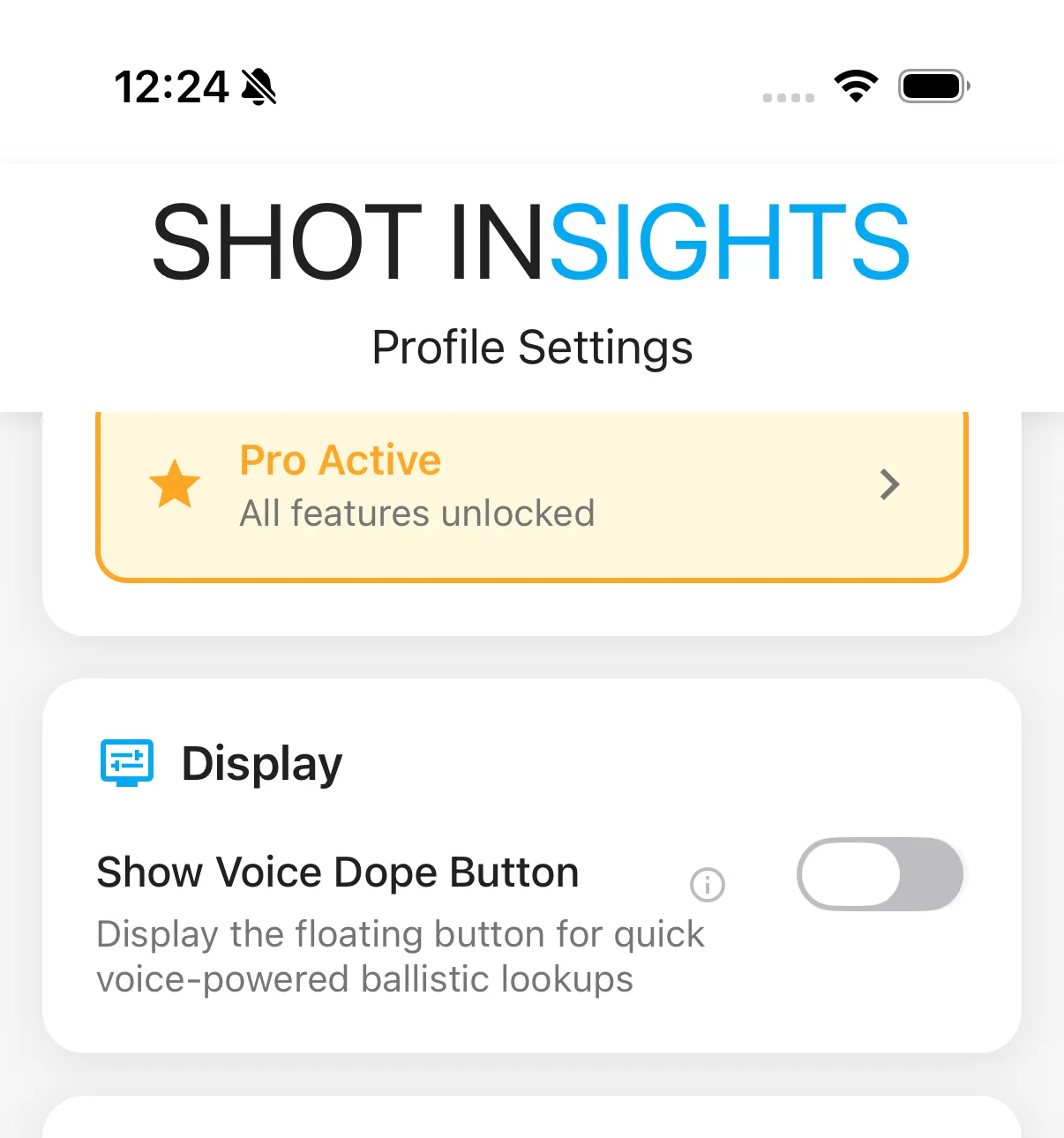
Use the app settings to choose the unit system you want for distance, speed, temperature, and other measurements.
Reticle units
Section titled “Reticle units”Set the app to the same reticle unit your scope uses.
- MOA
- MIL
Keeping the app and optic aligned helps your holds and adjustments stay easy to follow.
Display options
Section titled “Display options”Depending on the feature, Shot Insights includes display controls such as:
- Show Picture in Picture
- North/Center Lines
- Show Distance Circles
- Show Distance Labels
- Distance Increments
- Show Impacts Count
- Audio Callout
- Max Distance
- Max Windage
- Window Size
- Show Voice Dope Button
Update your settings
Section titled “Update your settings”- Open Settings in the app.
- Choose the section you want to adjust.
- Change the values or toggles you care about.
- Return to the feature you were using and confirm the display matches your preference.
- Match reticle units before you trust a hold.
- Review display options before a range session so your screen is not cluttered.
- Revisit settings after switching rifles, optics, or shooting styles.
If you want a refresher on the terms used in these controls, see the Glossary.
Help improve these docs
With your permission, we use Google Analytics cookies to understand which guides are useful. Analytics is optional. You can change your choice in Analytics preferences at any time. Privacy policy